This guide details how to play Sega CD games on your Steam Deck using EmuDeck. We'll cover setup, ROM transfer, and optimization for optimal performance.
Pre-Installation Steps:
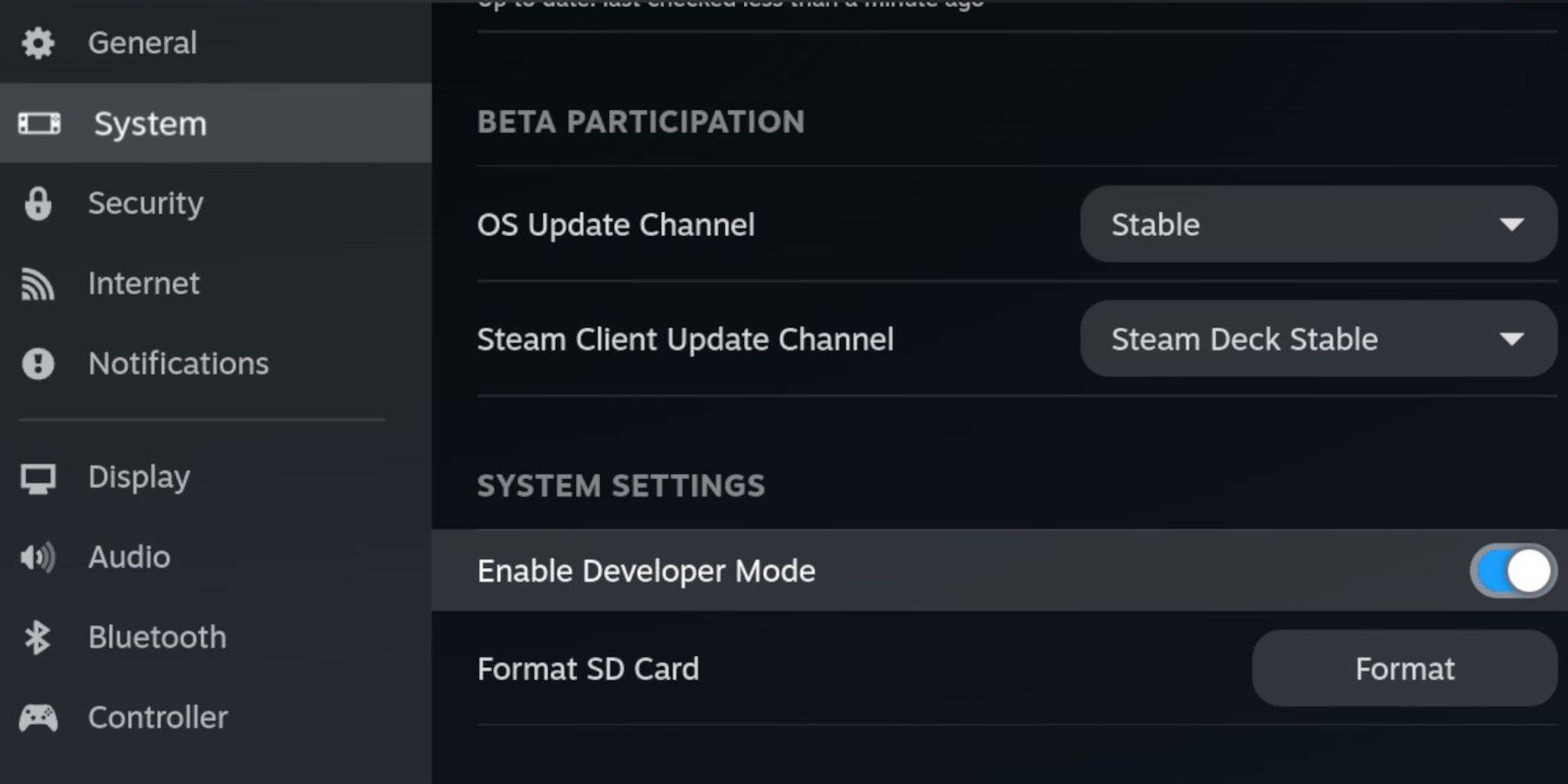 Enable Developer Mode and CEF Remote Debugging on your Steam Deck for compatibility with EmuDeck updates. Instructions:
- Access Steam Menu (Steam button).
- Navigate to System > Developer Mode and enable it.
- Go to the Developer menu and enable CEF Remote Debugging.
- Power menu > Desktop Mode.
Essential Requirements:
- High-speed A2 microSD card.
- Formatted microSD card (using Steam Deck's Storage settings).
- Legally obtained Sega CD ROMs and BIOS files.
- Optional: Keyboard and mouse for easier navigation.
EmuDeck Installation:
- Switch to Desktop Mode.
- Download a browser (from the Discovery Store).
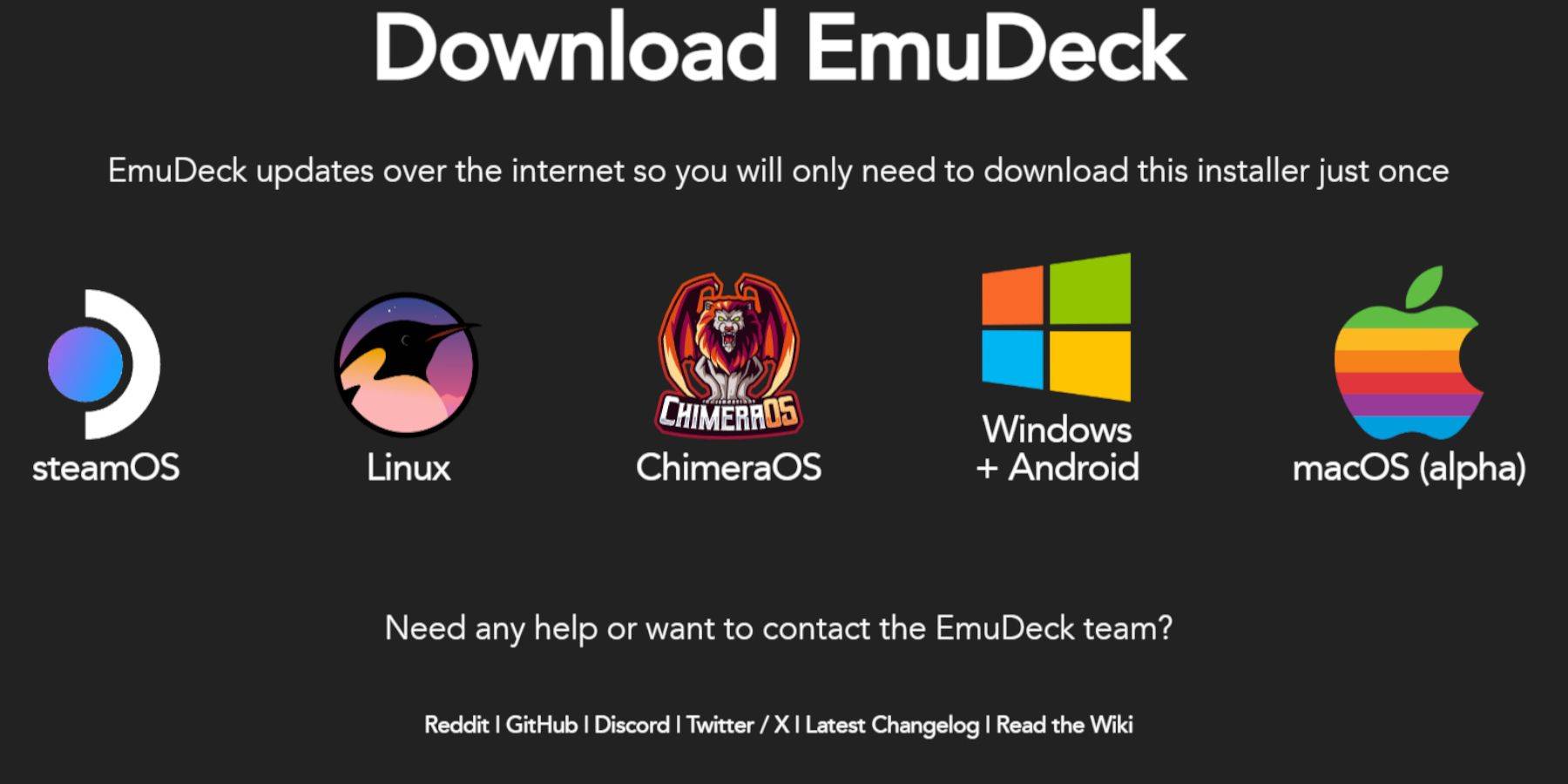
- Download EmuDeck, selecting the SteamOS version.
- Run the installer, choose Custom installation.
- Select your microSD card as the target.
- Choose RetroArch, MelonDS, Steam ROM Manager, and Emulation Station (or select all emulators).
- Complete the installation.
Transferring Sega CD Files:
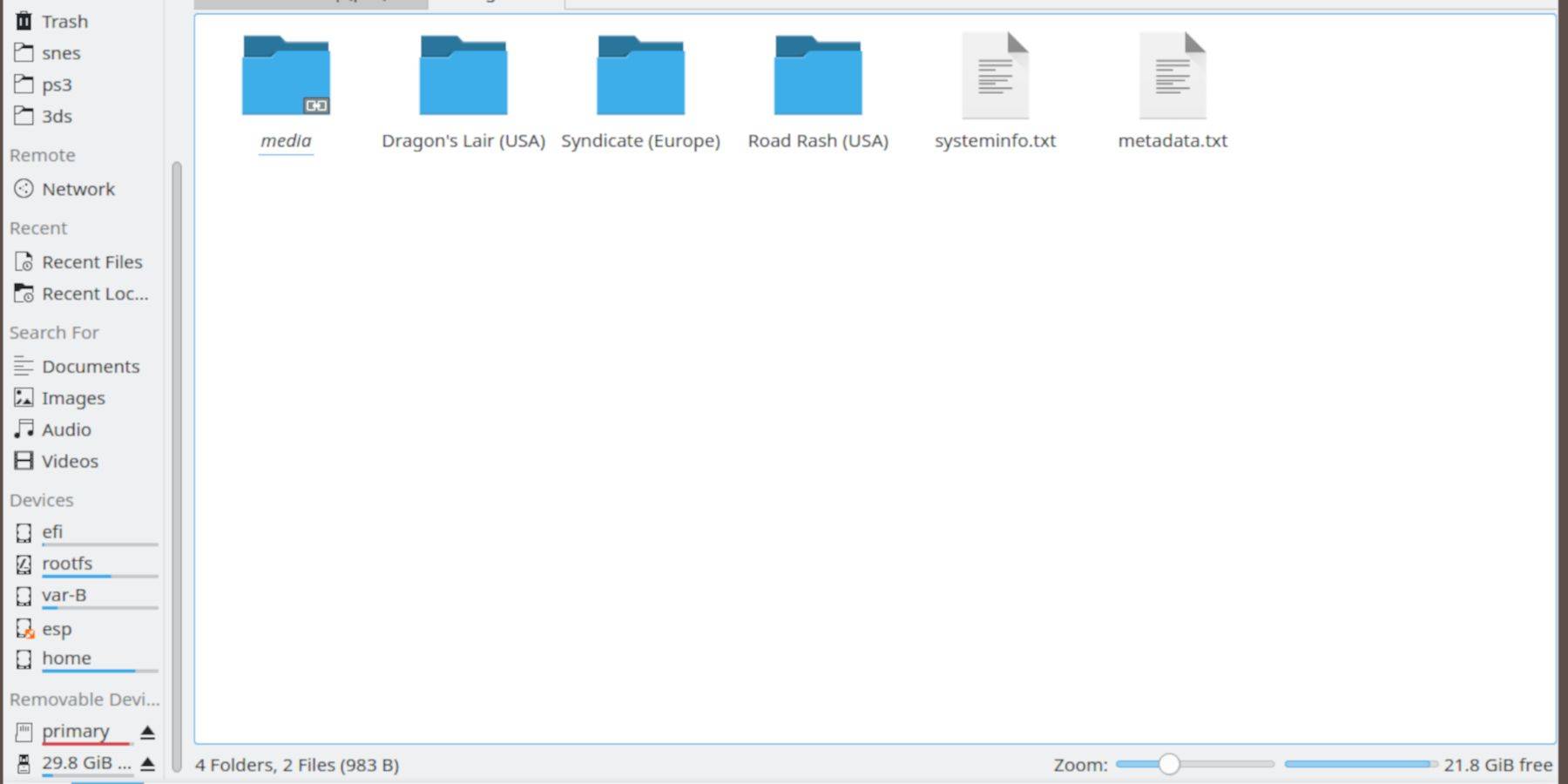
- Use the Dolphin File Browser (in Desktop Mode) to access your microSD card.
- Navigate to
Emulation>BIOSand transfer your BIOS files. - Navigate to
Emulation>ROMS>segaCD(ormegaCD) and transfer your ROMs.
Adding ROMs to Steam ROM Manager:
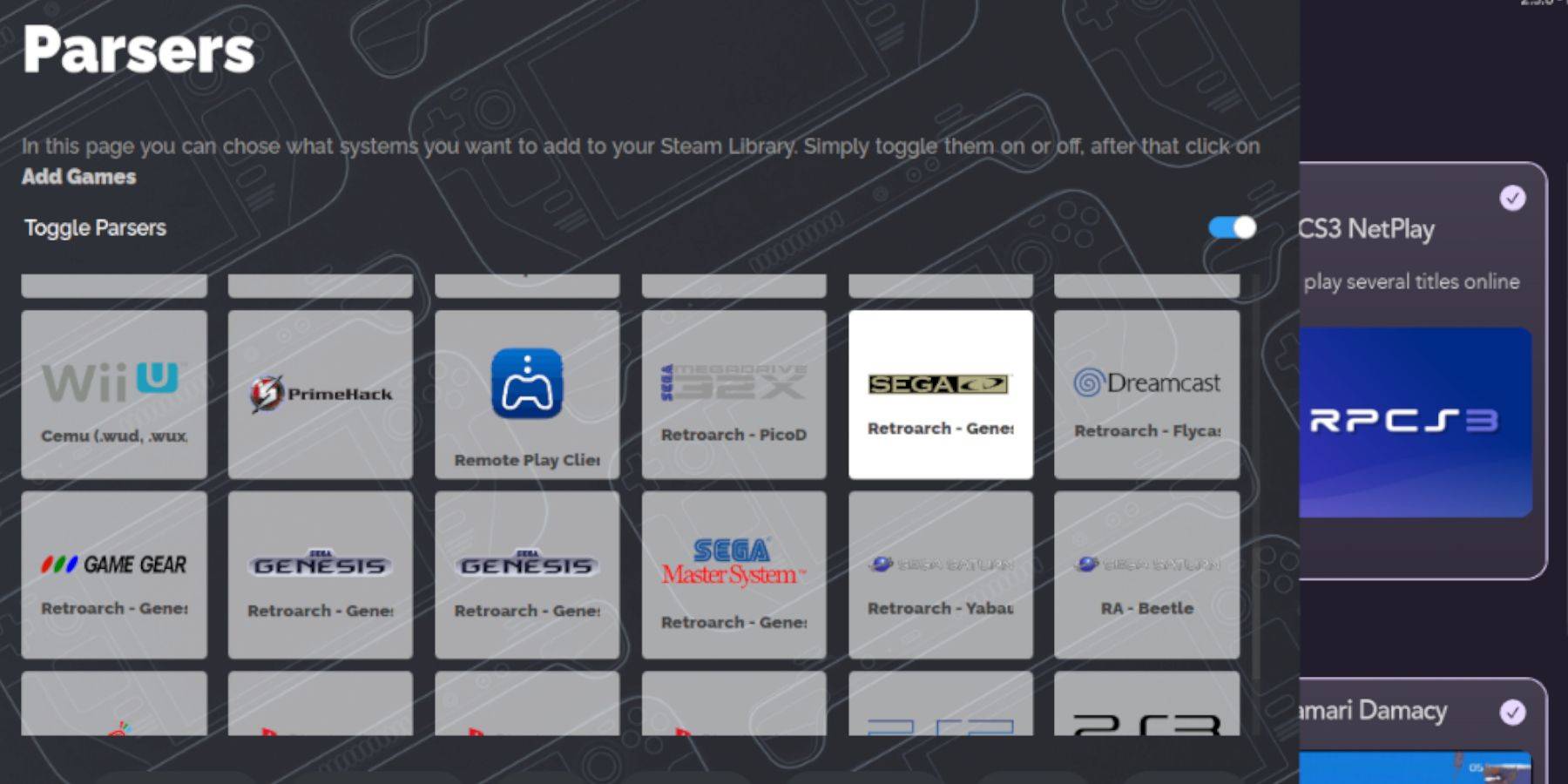
- Open EmuDeck and launch Steam ROM Manager.
- Follow the on-screen prompts.
- Add games and parse them. SRM will organize your games and covers.
Handling Missing Covers:
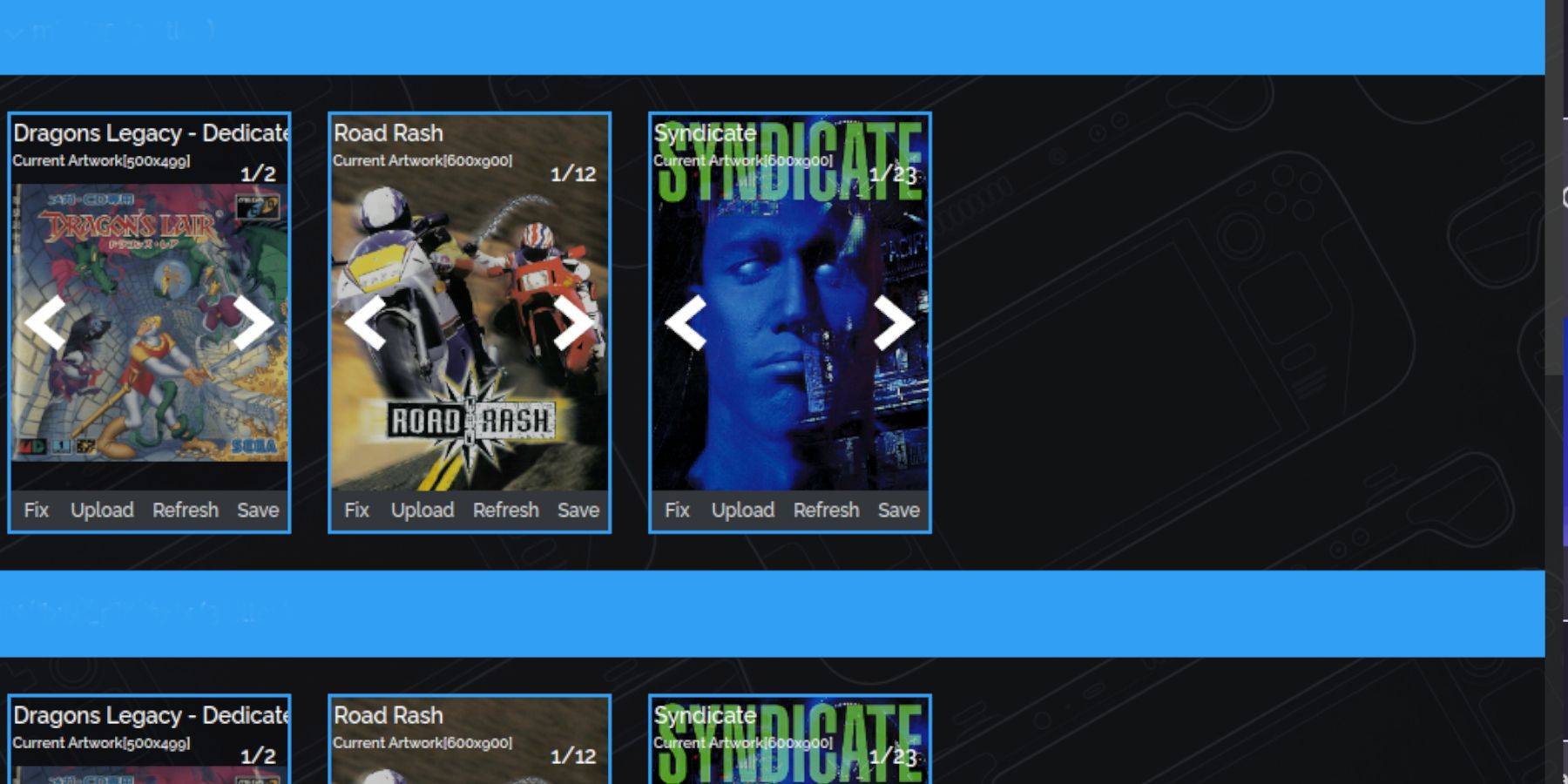
If covers are missing:
- Use the "Fix" function in SRM.
- Search for the game title.
- Select and save the appropriate cover art.
Manually add covers via the "Upload" function if SRM can't find them.
Playing Sega CD Games:
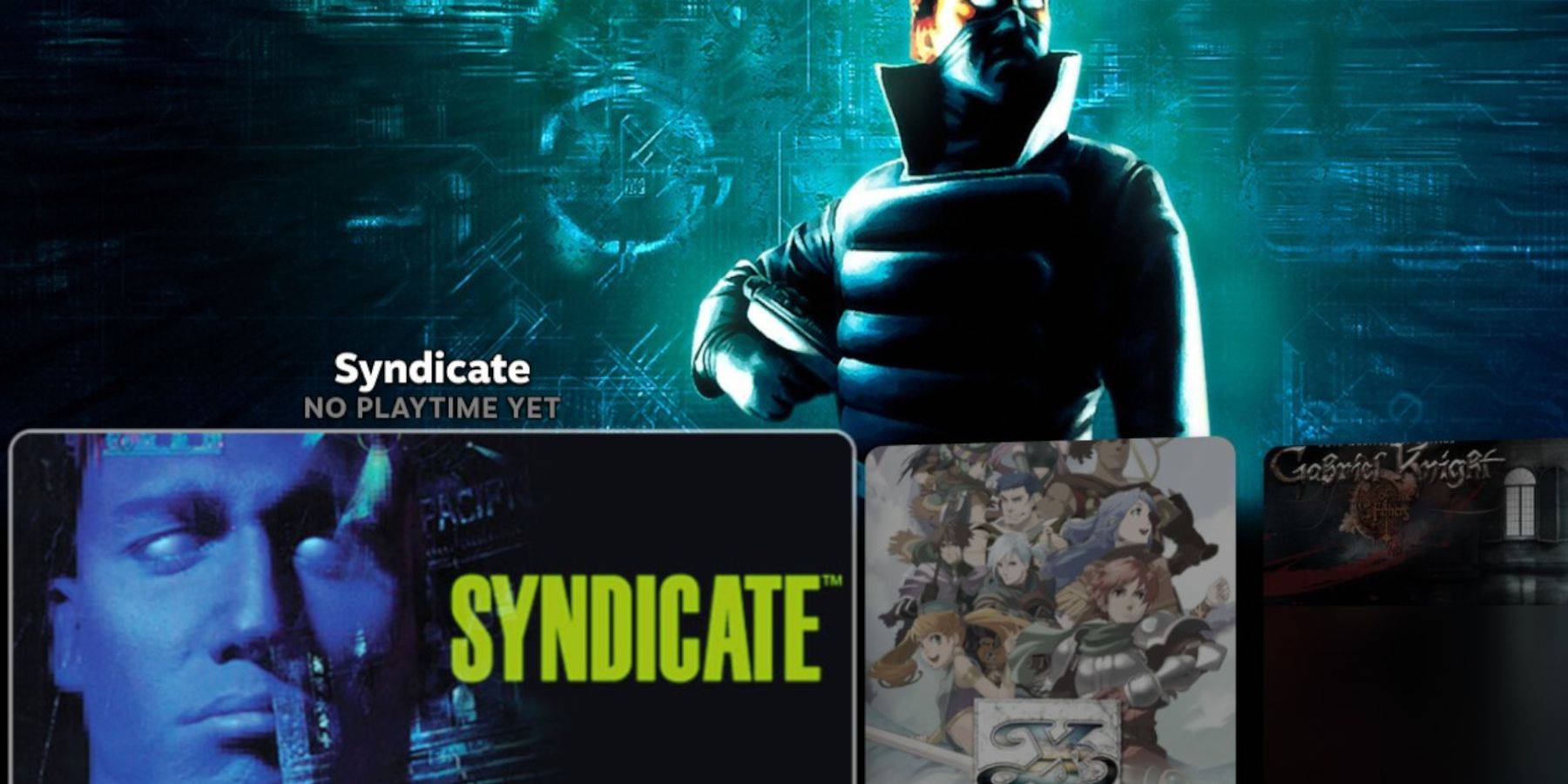
- Access Steam Library > Collections > Sega CD.
- Launch your games.
Using Emulation Station:
Emulation Station (installed earlier) provides a more organized library experience, especially for multi-disc games. Use its scraper function to automatically download metadata and artwork.
Decky Loader Installation:
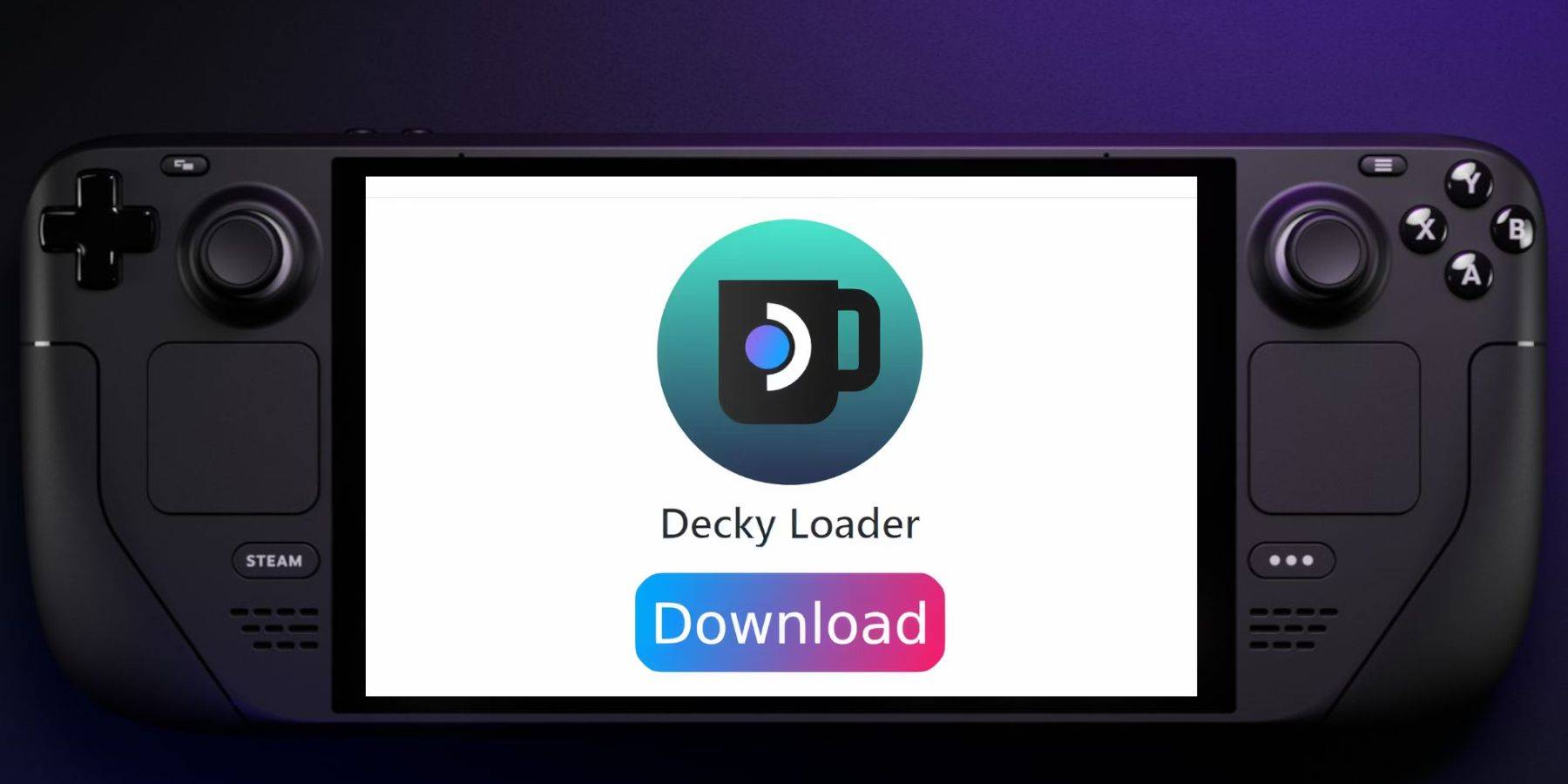
- Switch to Desktop Mode.
- Download Decky Loader from its GitHub page.
- Run the installer and choose Recommended Install.
- Restart your Steam Deck in Gaming Mode.
Power Tools Installation and Optimization:
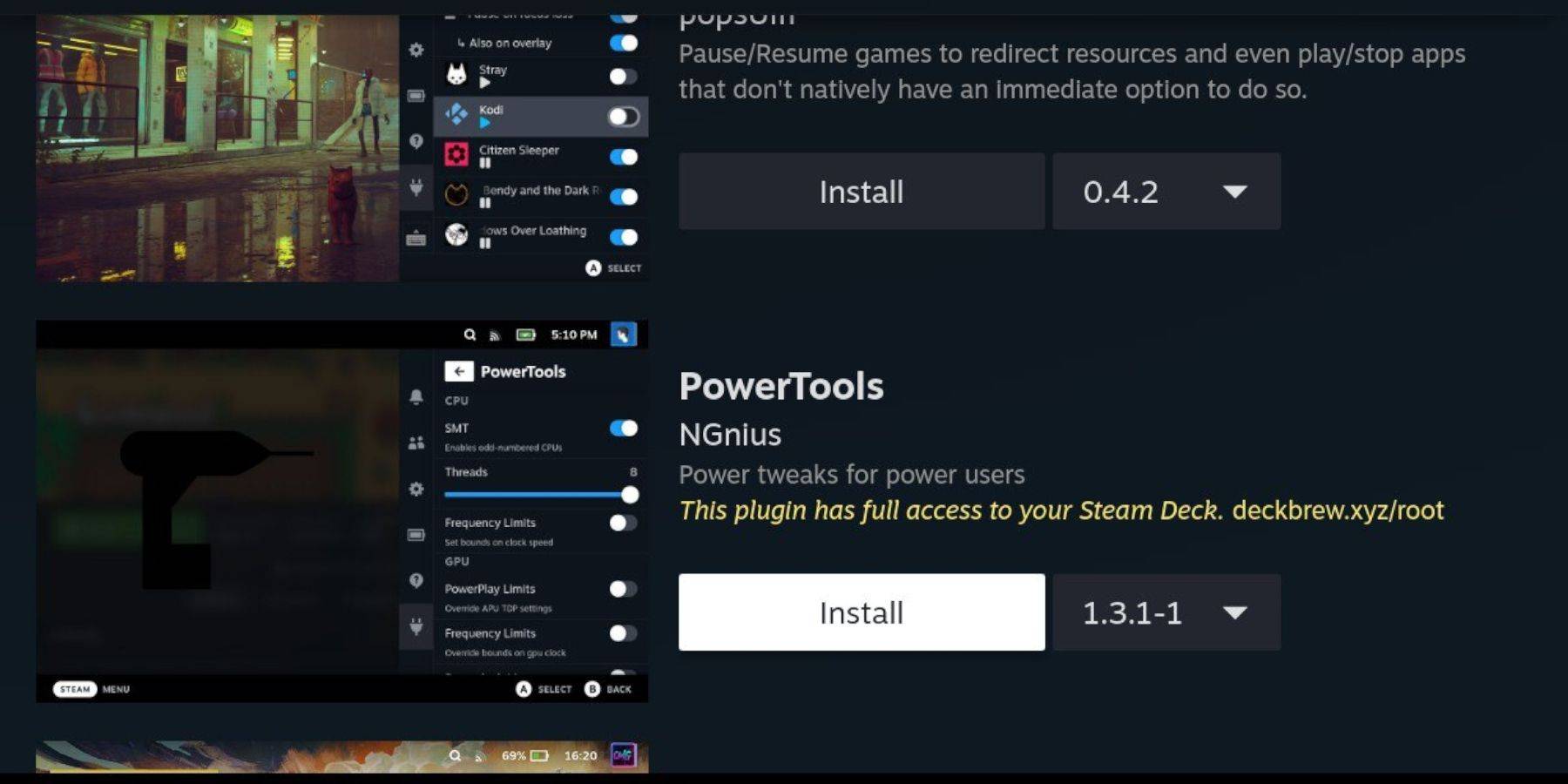
- Access Decky Loader via the Quick Access Menu (QAM).
- Install Power Tools from the Decky Store.
- Optimize settings within Power Tools (disable SMTs, adjust threads, adjust GPU clock).
Restoring Decky Loader After a Steam Deck Update:
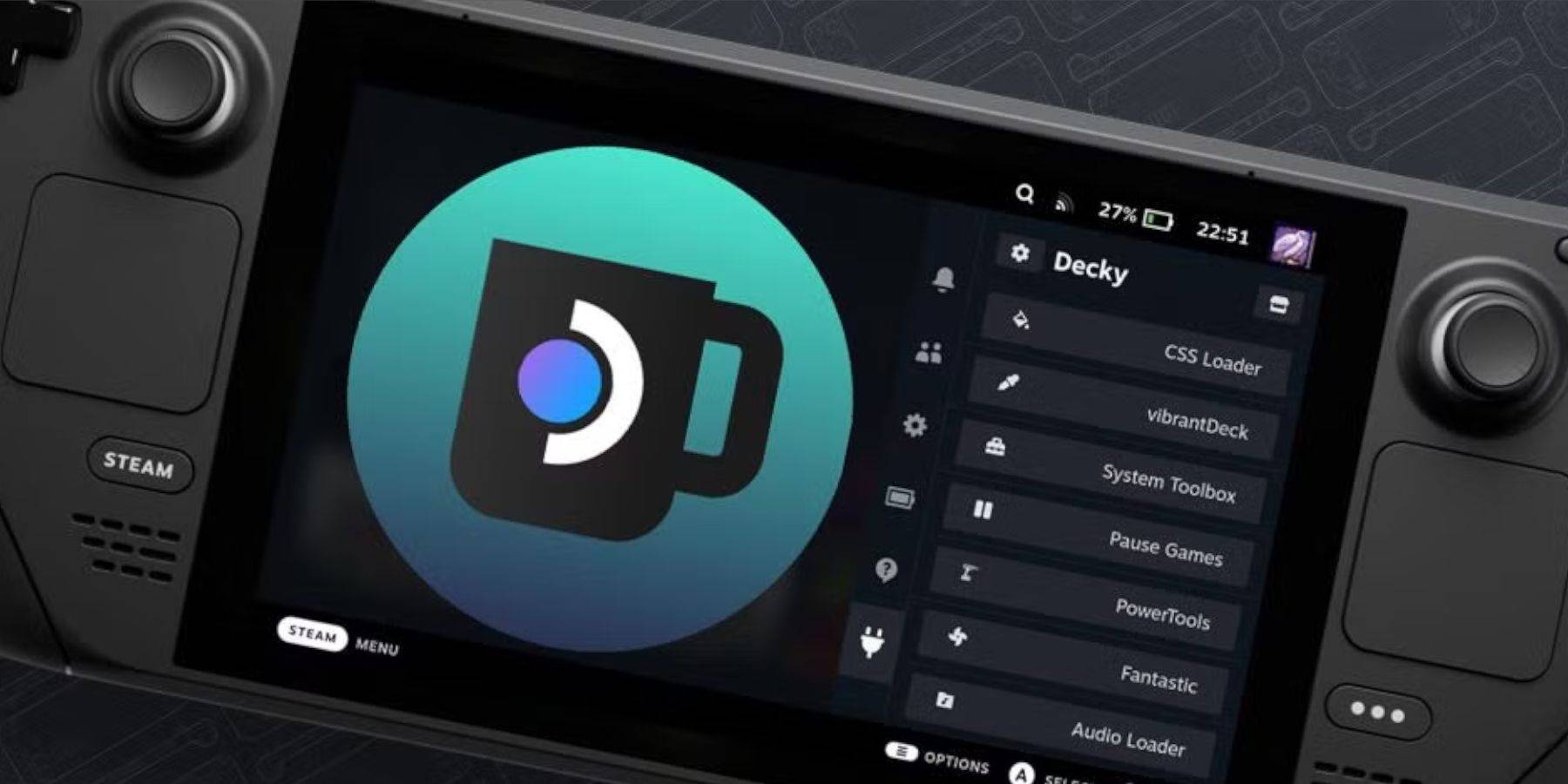
If Decky Loader is removed after an update:
- Switch to Desktop Mode.
- Re-download Decky Loader from GitHub.
- Run the installer using
sudo. You may need to create a sudo password. - Restart your Steam Deck.
This comprehensive guide should enable you to successfully set up and play your Sega CD games on your Steam Deck.