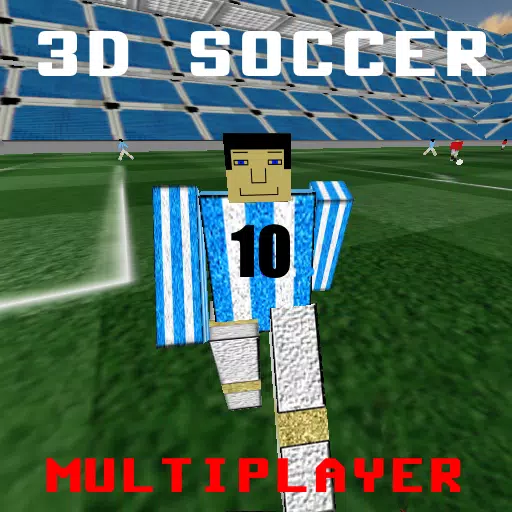
Experience Soccer in First Person
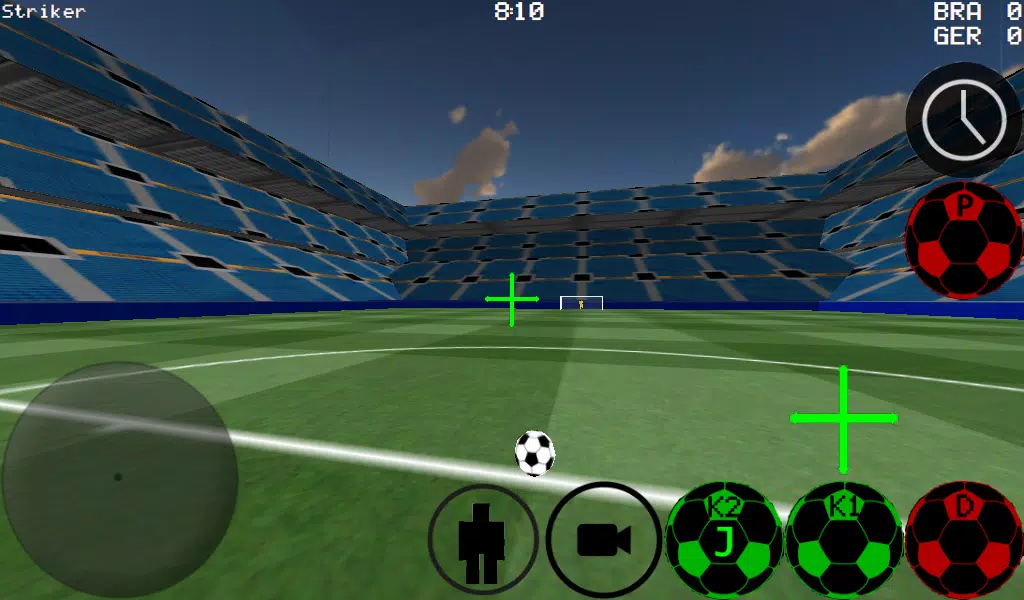
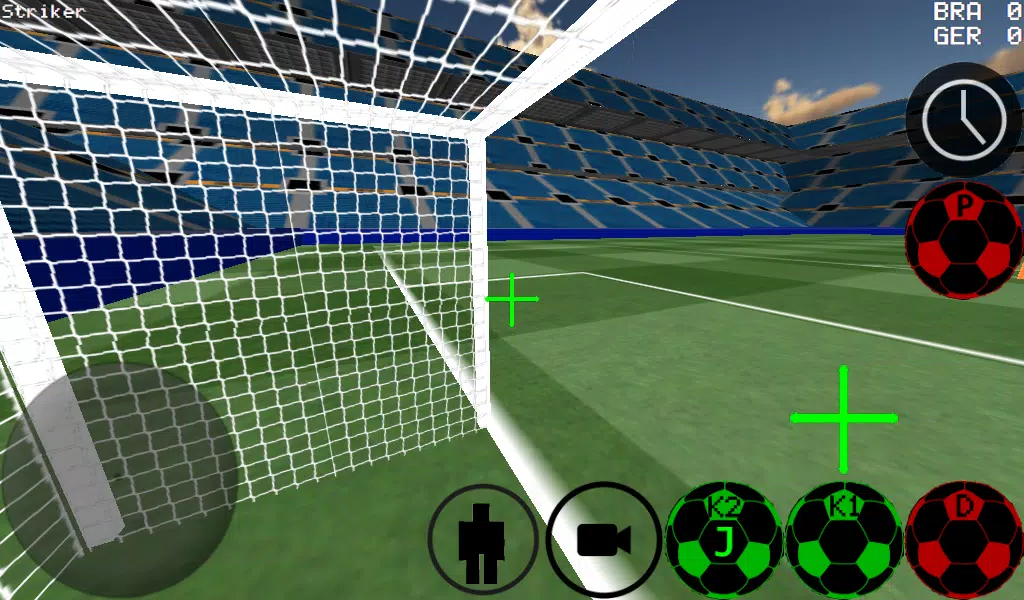
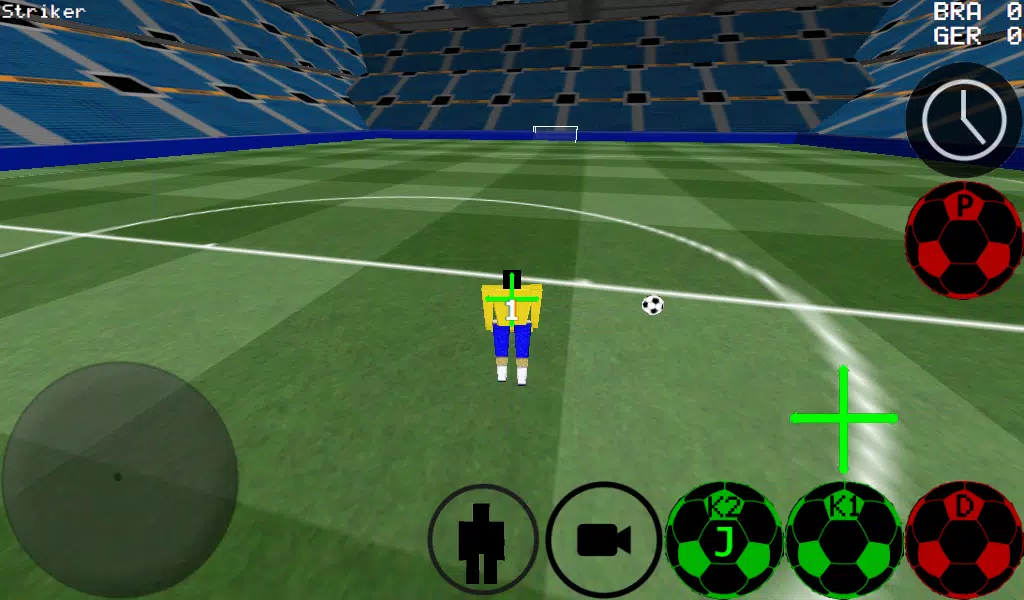
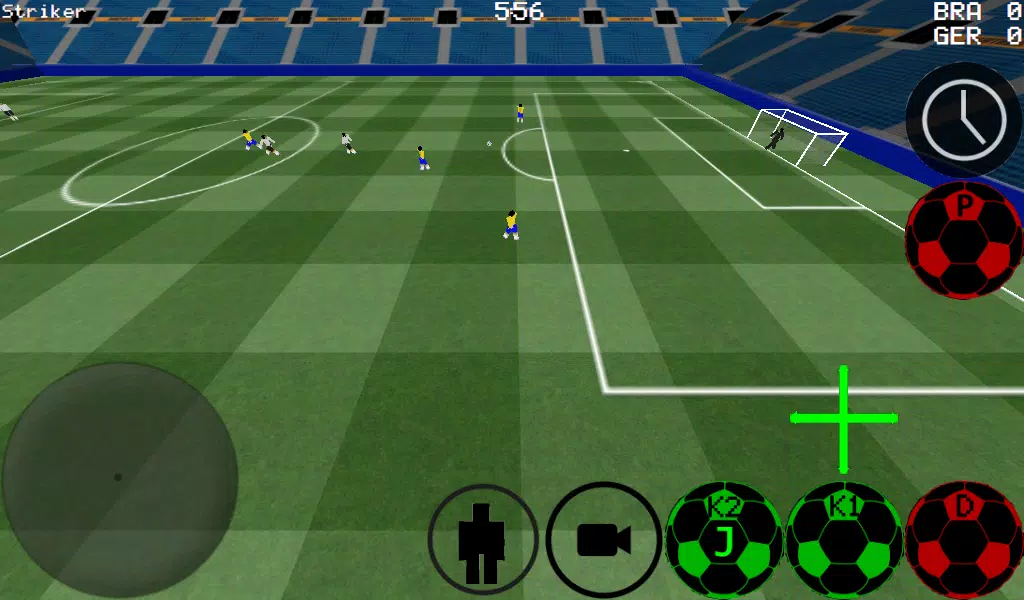
Play soccer from a first-person perspective, with support for third-person, top-down, and stadium camera views.
-Advanced ball control for precise dribbling and kicking.
-Play in matches ranging from 4 vs. 4 up to 11 vs. 11.
-Take control of any player on the field.
-Choose between auto-dribble or manual dribble options.
-Play as the goalkeeper.
-Practice free kicks.
-Practice corner kicks.
-Wall practice mode.
-Freestyle mode.
-Apply ball spin.
-Use slow-motion to line up the perfect shot.
-Supports multiplayer via LAN and Internet for up to 5 vs. 5.
-Use K1 and K2 buttons to kick the ball in the direction you're looking.
-Two unique stadiums to play in.
-Experimental Xbox 360 Controller support via USB.
Xbox 360 USB Controller Layout
A = Dribble
X = Medium Kick (in camera direction)
Y or RIGHT BUTTON = High Power Kick (in camera direction)
B = PASS (passes to AI teammate)
START = Change Camera
LEFT Button = Slow Time
UP PAD = Change Player
BACK = RETURN TO MENU
RIGHT HAT = Camera Control
LEFT HAT = Player Movement
Setting up a WAN/LAN Server:
1. Turn on Wi-Fi (ensure connection to a router/modem).
2. Click on LAN GAME.
3. Click on START SERVER.
4. Click Connect (once or twice). You are now connected to the server as a player and are also hosting the server.
To connect to the server as a second player:
1. Turn on Wi-Fi (ensure connection to the same router/modem as the server).
2. Click on LAN GAME.
3. Click CONNECT a few times (You are now connected to the game).
Playing Over the Internet - Creating a Server
1. Port forward port 2500 on your modem/router to your phone or tablet's IP address.
2. Click on LAN GAME.
3. Click on START SERVER.
4. Click Connect (once or twice). You are now connected to the server as a player and are also hosting the server.
CONNECTING TO AN INTERNET SERVER
1. CLICK LAN CONNECT.
2. CLICK IP / TI SERVER.
3. ENTER THE SERVER'S IP ADDRESS (e.g., 201.21.23.21) and click connect IP once or twice until you enter the game.
Tags : Sports